What's New in Propel Rx 2.1 SP4
Release Highlights | Enhancements | Fixes
Release Highlights
Enhancements
Analysis for Drug/Prescriber Report | Case Receiving | New Inventory History Report Criteria | Report Groups | Third Party Alternate Names | Additional Enhancements
Analysis for Drug/Prescriber Report
The Analysis by Doctor report has been removed and merged into the Analysis by Drug report. Instead of two separate reports for Analysis by Doctor and Analysis by Drug, you will now see one report called Analysis for Drug/Prescriber.
This enhancement applies to:
-
All users that generate the Analysis by Drug and/or Analysis by Doctor reports.
Here's what changed:
-
All criteria for the Analysis by Drug report remain available for selection with the addition of Prescriber and Report Groups fields.
-
Sort options have been added to sort prescriptions by drug name, prescriber, third party, group, custom class, or report group.
-
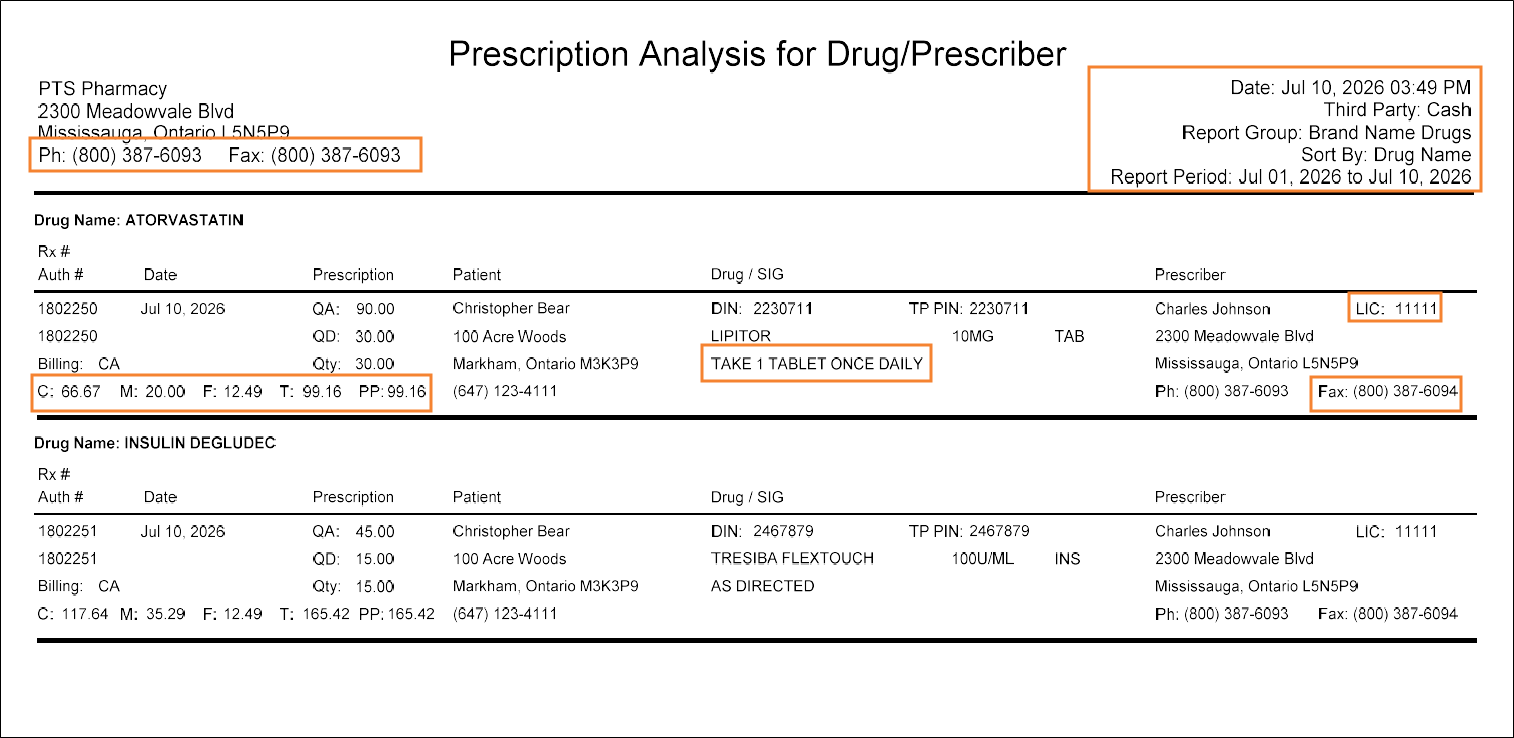
The report displays in a landscape orientation.
-
All information that displayed previously on the Analysis by Drug and Analysis by Doctor reports can be found on the new report.
-
On the report header, the pharmacy phone and fax numbers appear on the left and selection criteria on the right.
-
The cost, markup, fee, total, and patient pays amount now appear underneath the billing codes.
-
Instructions now appear below the drug name.
-
The prescriber's license number and fax number now appear in the Prescriber column.
Here's how it works:
-
For detailed information on the report, see Analysis for Drug/Prescriber.
Action required:
-
Set new report defaults as needed for the Analysis for Drug/Prescriber report.
Case Receiving
We've improved how case quantities are handled when receiving purchase orders in Propel Rx. This ensures your inventory and pricing are updated correctly when products are shipped as cases, packs, or a combination of both.
This enhancement applies to:
-
Pharmacies receiving McKesson purchase orders through PharmaClik Ordering. This does not apply to Kohl & Frisch (K&F) purchase orders.
-
Pharmacies using perpetual inventory.
Here's what changed:
-
Previously, when a case of product was indicated on a PharmaClik invoice, it would be treated as a single unit by Propel Rx instead of the full quantity inside the case. This sometimes led to incorrect updates to on hand quantities and pricing.
For example:
-
Your pharmacy received a case of Freestyle Libre 2 sensors containing 24 sensors. The invoice indicates 1 case of this product was shipped.
-
You reconcile the purchase order in Propel Rx.
-
The on hand increases by 1 (instead of 24) and the acquisition cost per pack is set to the total cost of the case (instead of the cost of 1 sensor).*
*Acquisition cost and supplier price update when purchase orders are reconciled if the Supplier Cost Update preferences are set to Received Price.
-
-
With this enhancement, Propel Rx now correctly updates the on hand quantity and pricing based on the actual contents of each case, reducing the need for manual adjustments.
Here's how it works:
-
Propel Rx will perform the required calculations to update on hand quantities and prices when cases are received.
| Scenario | On hand (ut) increases by... | Price (pk) and/or Acq Cost (pk) is set to... | Price (ut) and/or Acq Cost (ut) is set to... |
|---|---|---|---|
| 1 case is shipped and received | Number of Cases x Number of Packs in a Case x Pack Size | Case Price ÷ Number of Packs in a Case | Price (pk) or Acq Cost (pk) ÷ Pack Size |
| 1 case and 2 packs are shipped | (Number of Cases x Number of Packs in a Case x Pack Size) + (2 x Pack Size) | Pack Price or (Case Price ÷ Number of Packs in a Case) | Price (pk) or Acq Cost (pk) ÷ Pack Size |
Action required:
-
None. Send and reconcile your purchase orders as per usual process.
New Inventory History Report Criteria
We've introduced new criteria for the Inventory History report to better tailor the report to meet your pharmacy's cycle counting needs.
This enhancement applies to:
-
Pharmacies using perpetual inventory in Propel Rx.
-
Any user that runs the Inventory History report to help with cycle counting.
Here's what changed:
-
All the previous options for generating the report remain available.
-
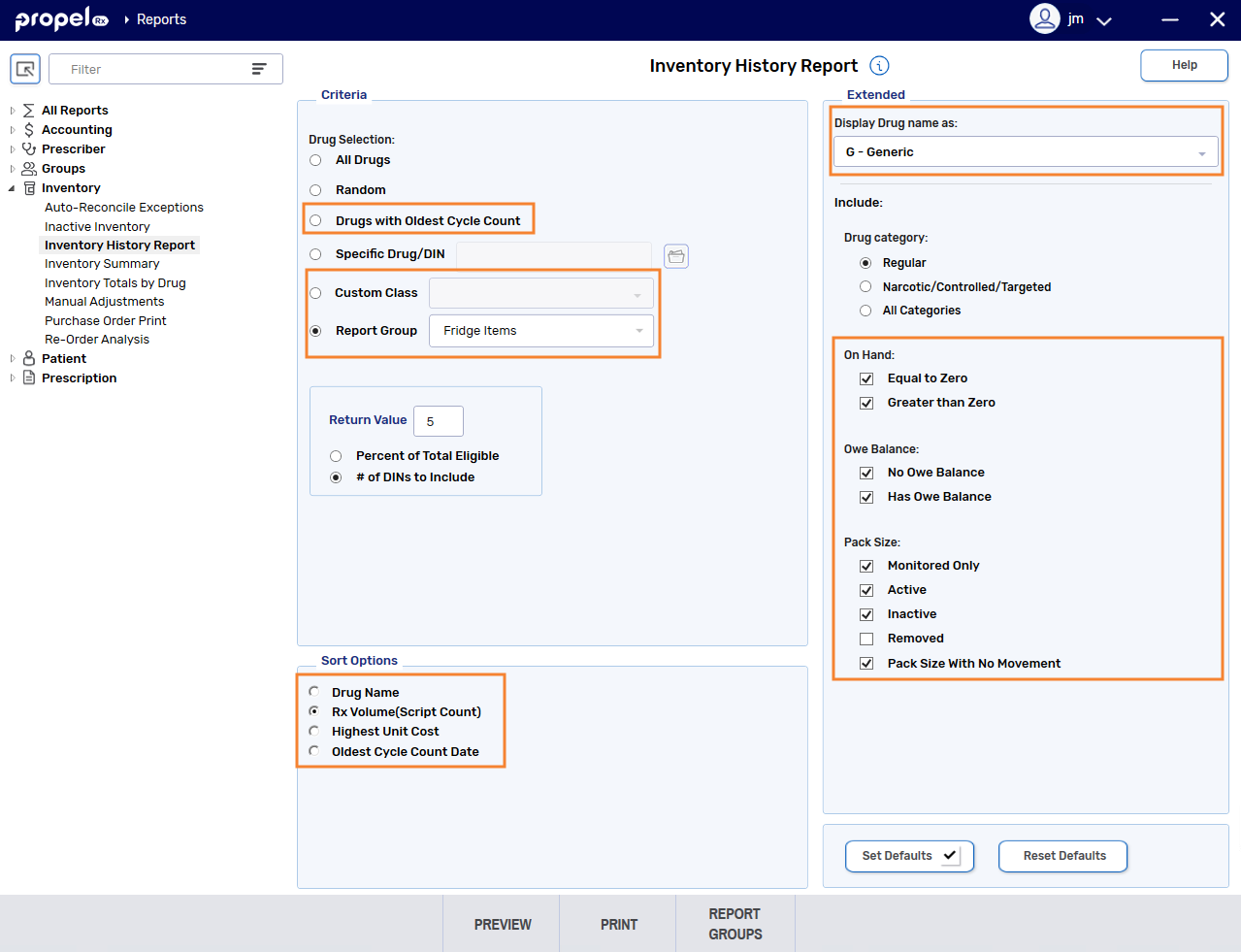
The Drug Selection (formerly known as Selection) options and Return Value fields have been moved under the Criteria section.
-
The Drug Selection options have been expanded to include Drugs with Oldest Cycle Count, Custom Class, and Report Groups.
-
New options for filtering the report include Display Drug Name As, On Hand, Owe Balance, and Pack Size.
-
The report can also be sorted by drug name, prescription volume, unit cost, or cycle count date.
-
The report header has been updated to reflect the new options that can be selected for the report's generation.
Here's how it works:
-
The Display Drug Name As dropdown lets you choose whether the generic or trade name displays on the report. As a result, the corresponding option to sort by trade name has been replaced with drug name.
-
The On Hand option filters the report for products with on hand values of 0 and/or greater than 0. You can also view products with owe balances and/or without owe balances. For example, use this option to focus cycle counts on active stock or review products with outstanding owes.
-
The Pack Size option filters the report based on pack size status (monitored, active, inactive, removed) and movement.
-
The Drugs with Oldest Cycle Count option retrieves drugs without a cycle count date first, followed by those with the oldest cycle count dates.
-
The Custom Class option lets you generate the report for drugs with the chosen custom class.
-
The Report Groups dropdown lists all report groups with a type of Drug/Mixture and lets you generate the report for the drugs in the chosen report group(s).
-
Default selections can be set for the new options in the Extended and Sort Options sections, so they are automatically selected the next time the report is opened.
-
For more information about the report, see Inventory History Report.
Action required:
-
Review the new options and set defaults for the Inventory History report if desired.
Report Groups
We've introduced a new Report Groups feature that allows you to create and save custom groups of drugs, prescribers, or patients and reuse them across different reports.
This enhancement applies to:
-
Any pharmacy that regularly runs reports for the same groups of drugs, patients, or prescribers.
-
Pharmacies that want standardized reporting practices across users and locations under the same owner.
Here's what changed:
-
Before report groups, there were limited ways to work with groups of data when running reports.
-
For patient records, you could use groups to run reports but each patient could only belong to one group at a time.
-
For drug or mixture records, you could assign custom classes to run reports but there was no central place to view or manage all drugs within a custom class.
-
For prescriber records, there was no way to group them for reporting purposes.
-
-
There are no changes to patient groups and custom classes. Report groups are a new, separate option used to organize data for reporting purposes.
-
With report groups:
-
A single record (patient, drug/mixture, or prescriber) can be included in multiple report groups.
 Examples
-
A compliance pack patient belongs to a report group containing all blister pack patients and a report group for diabetes monitoring.
-
A drug belongs to a report group for fast movers and a group for January cycle counts.
-
A prescriber belongs to a report group for high-volume prescribers and a group for pain management.
-
-
Groups are centrally managed.
-
You can reuse the same report group across multiple reports without rebuilding it each time.
-
Here's how it works:
-
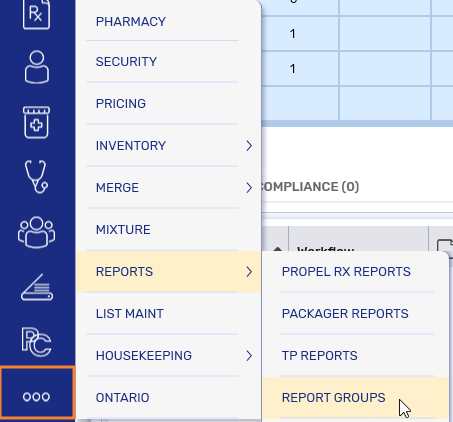
A new Report Groups option is available under More (...) > Reports and as an action button at the bottom for any report.
 Report Groups button is missing
A small subset of reports open in the old Propel Rx Reports application, which does not have the Report Groups button. For these reports, access report groups from the More (...) menu.
-
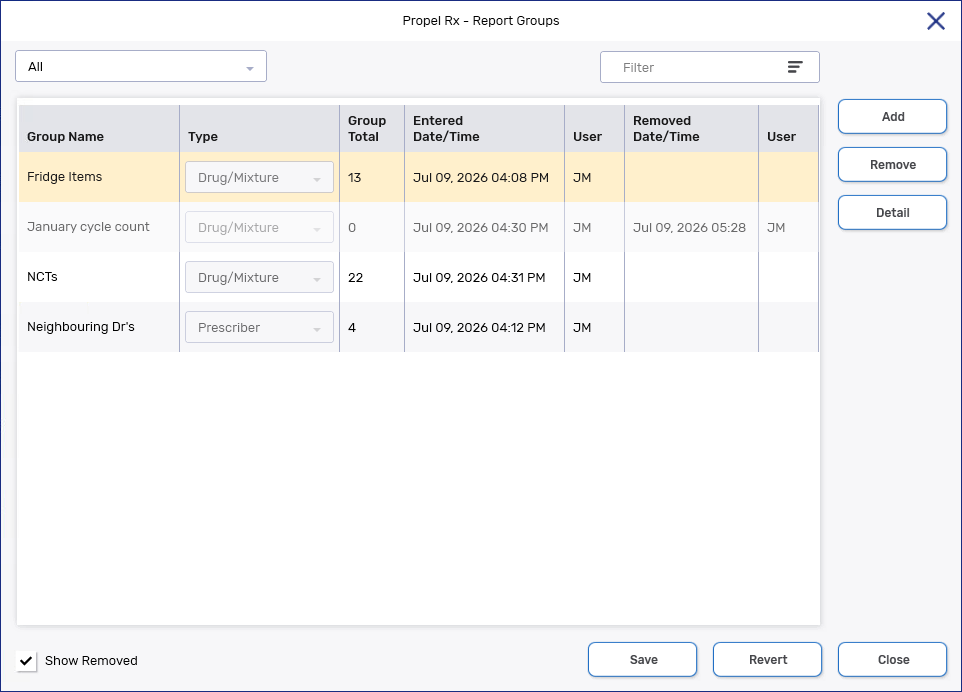
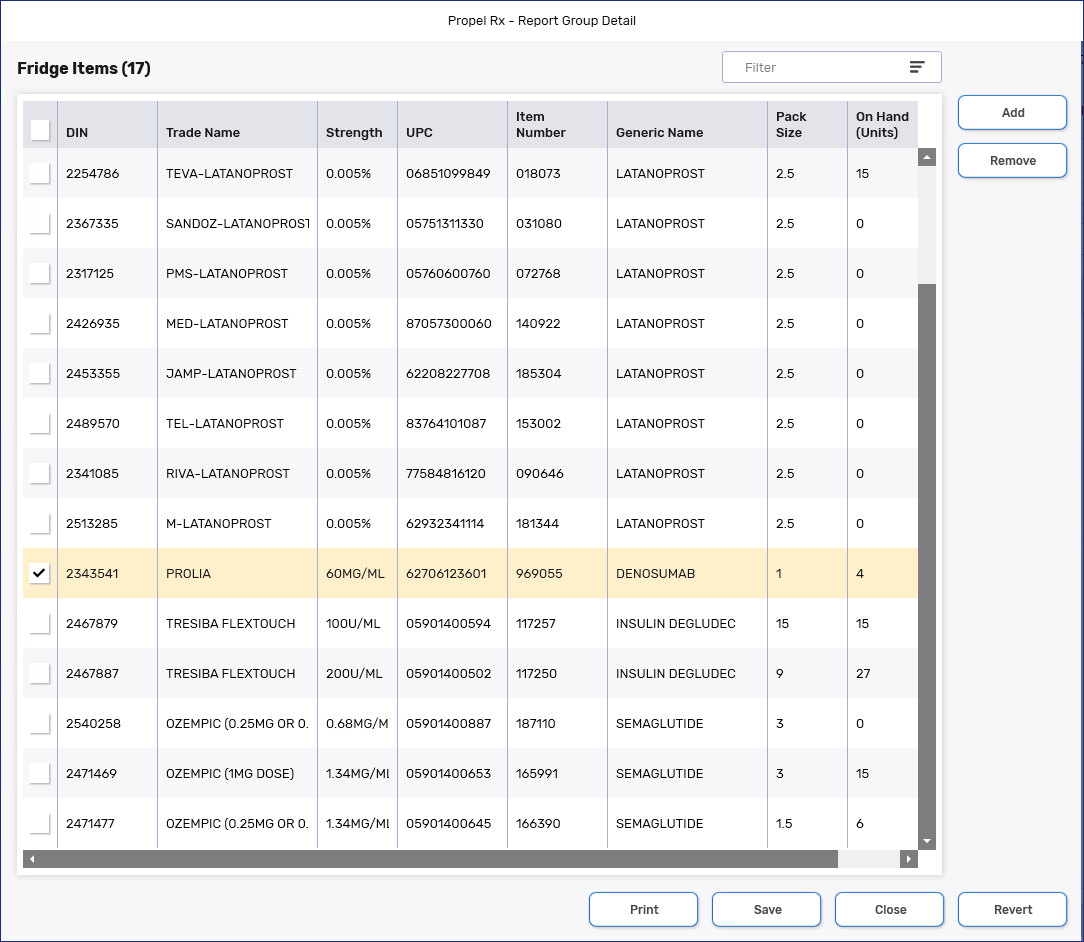
From the Report Groups window, you can add a report group, give it a custom name, select the type, and add records to it.
-
Report groups are shared with all users in the database. For pharmacy owners with multiple stores, report groups must be set up per location.
-
Any user with full access to reports in the Security Administration Facility window can add, edit, or remove report groups.
-
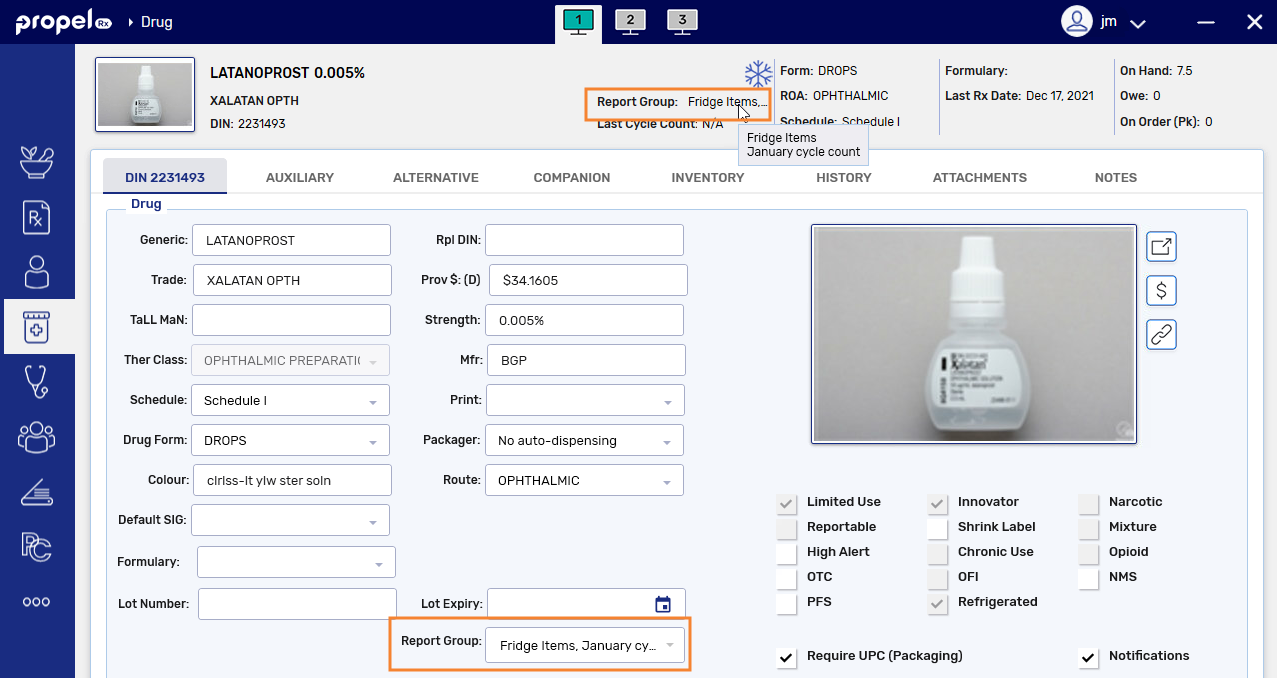
You can also assign records to a report group from their respective folder (Drug/Mixture, Prescriber, or Patient).
-
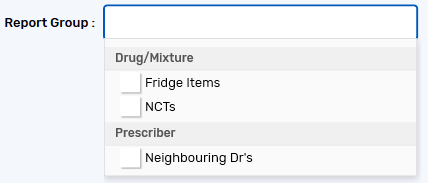
For a subset of reports, a dropdown will be available to select one or more report groups for generation. Only report groups that are relevant to that report are available for selection (e.g., only prescriber-type report groups appear for the Prescriber List report).
Supported reports
-
Analysis for Drug/Prescriber (formerly the Analysis by Drug and Analysis by Doctor reports)
-
Inventory History
-
Inventory Summary
-
Manual Adjustments
-
Net Sales Analysis
-
New Patient List
-
Patient List
-
Prescriber List (formerly known as Doctor List)
-
Re-Order Analysis
-
-
Records can be added or removed from a report group at any time. Each change is recorded in the respective folder's History tab.

-
To learn more, see Report Groups.
Action required:
-
Report groups are not pre-loaded into Propel Rx. Create report groups to gather insights that are relevant to your pharmacy.
Third Party Alternate Names
You can now enter and transmit an alternate patient name for third party plans in the event an insurer has a different name than what's entered in Propel Rx.
This enhancement applies to:
-
Patients who go by a different name than what is recorded with their insurer, such as a short form or maiden name. For example, a patient is entered in Propel Rx as "Robert Smith" but is registered with their insurer as "Bob Smith."
-
Alternate names can be entered for all third party plans. However, there are some third parties for which the alternate name will not transmit or must meet certain criteria. Select the dropdown below for more information.
Third Party Exceptions
-
For British Columbia PharmaCare and Saskatchewan Drug Plan, the PHN is transmitted in lieu of the patient's first and last name for claims.
-
For Ontario Drug Benefit, the first name in the Third Party tab must match the first name in the Main tab. Otherwise, a patient first name error will be returned by Drug Benefit.
-
Here's what changed:
-
Previously, there was no way to store different patient names for each third party plan. While a Cardholder field existed, it functioned to transmit the cardholder's last name and did not affect the first or last name sent in a claim.
-
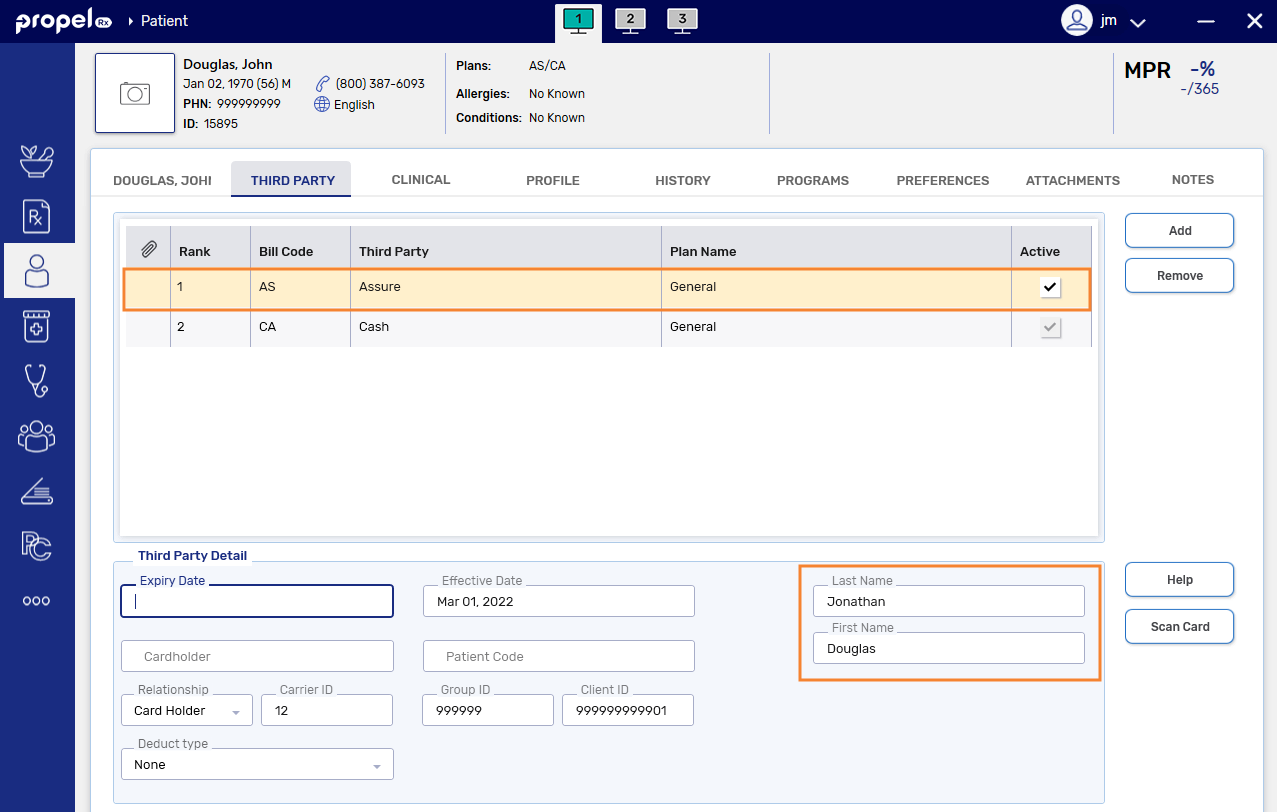
With this enhancement, you can store alternate patient names in the Patient Folder for the sole purpose of claim adjudication. The alternate name is only visible from the Patient Folder Third Party tab. It will not be reflected in any other area of Propel Rx like reports, forms, or labels.
Here's how it works:
-
In the Patient Folder Third Party tab, you will see new fields for First Name and Last Name.
-
Each third party plan can have its own alternate name, and the information does not automatically copy to the other plans.
-
By default, both fields are blank and optional. However, if you complete one name field in the Third Party tab, the other must be completed as well.
-
The alternate name is used when a claim is sent to the insurer. If no alternate name is entered or the alternate name is removed, Propel Rx continues to use the name from the Patient Folder Main tab.
Action required:
-
Enter alternate names in the Patient Folder Third Party tab when the insurer has a different patient name than the one entered in Propel Rx.
Additional Enhancements
-
For non-McKesson suppliers, the Item # field now supports leading zeroes and allows alphanumeric characters and special characters (such as dashes), with a maximum length of 15 characters.
-
The Pacific Blue Cross Client ID field should now be automatically padded with leading zeroes to a total of 10 digits in the claims message. This ensures electronic reversals can be successfully completed even if the client ID was originally entered without leading zeroes. You do not have to update existing patient records.
The leading zeroes will be added automatically during claim transmission when needed and won't be visible from the Patient Folder Third Party tab, unless you enter them in yourself.
-
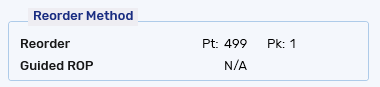
In the Product Usage view, the ReOrder Point section has been renamed to ReOrder Method. To make the labels for this section more intuitive, ROP has been renamed to Reorder, and Pt and Pk headers now display before the reorder point and pack values. These are naming changes only.
Fixes
Reports
-
The Inventory History report should correctly account for the inventory that is added when a prescription is filled before the last reconciled date and cancelled during the report period. This fix applies to reports generated going forward.
Thermal Labels
-
The SIG text on thermal vial labels should no longer be cut off. Propel Rx will automatically adjust the font size and line wrapping to ensure the full SIG is visible on the printed label. Maximum capacity on the thermal vial label remains at 120 characters.
Alberta
-
In the Immunization window, the manufacturer should consistently auto-populate based on the manufacturer field in the corresponding Drug Folder. If the manufacturer field is blank in the Drug Folder, it will default as blank for the immunization and must be manually selected from the provided dropdown.
-
An error should no longer appear when an immunization is entered from the Patient Folder Clinical tab.
-
Immunization query results have been filtered to display only relevant observations. Information including DIN, ProvFunded, Preventable disease info, and Snomed will be temporarily hidden in the EHR Patient Clinical History window and Immunization Details window until these fields are supported by the Imm/ARI integration in Propel Rx.